
Appendices
VEE Wear Companion App User Guide
Introduction
The Companion App for MicroEJ VEE Wear devices demonstrates the VEE Wear features that use Bluetooth Low Energy.
It allows you to manage all compatible devices (scanning, pairing and connecting), to synchronize current date and time, and to deploy applications.
How to install VEE Wear Companion
The application is distributed both as an APK and through the Firebase App Distribution service.
Transfer the APK onto your mobile and install it manually.
If you are not yet a registered “tester”, please ask the MicroEJ support team to add you to the group.
Open the invitation email on your mobile and follow the instructions to download and install the application. You can sign in with any Google account to accept the invitation.
Install Firebase App Tester when proposed to (optional, recommended). It simplifies access to the app builds (store-like experience), and ensures seamless app updates (unlike manual APK installs).
You will be notified when an update is available.
Note
The Companion App requires Android 13 or higher.
Initial Setup
Open the VEE Wear Companion app.
Grant permissions if prompted.
Enable Bluetooth adapter if prompted.
Go to
Manage devices.Select
Find compatible devices.Select your device (e.g.,
FireFinch 86).Click on
Connect. Accept any bonding request when prompted.The device should now be
BondedandConnected.
Note
If you can’t find your device, it is most likely that it is not advertising. Check that the device is not already connected to a phone. If needed, reboot the device to reset its state.
How to manage devices
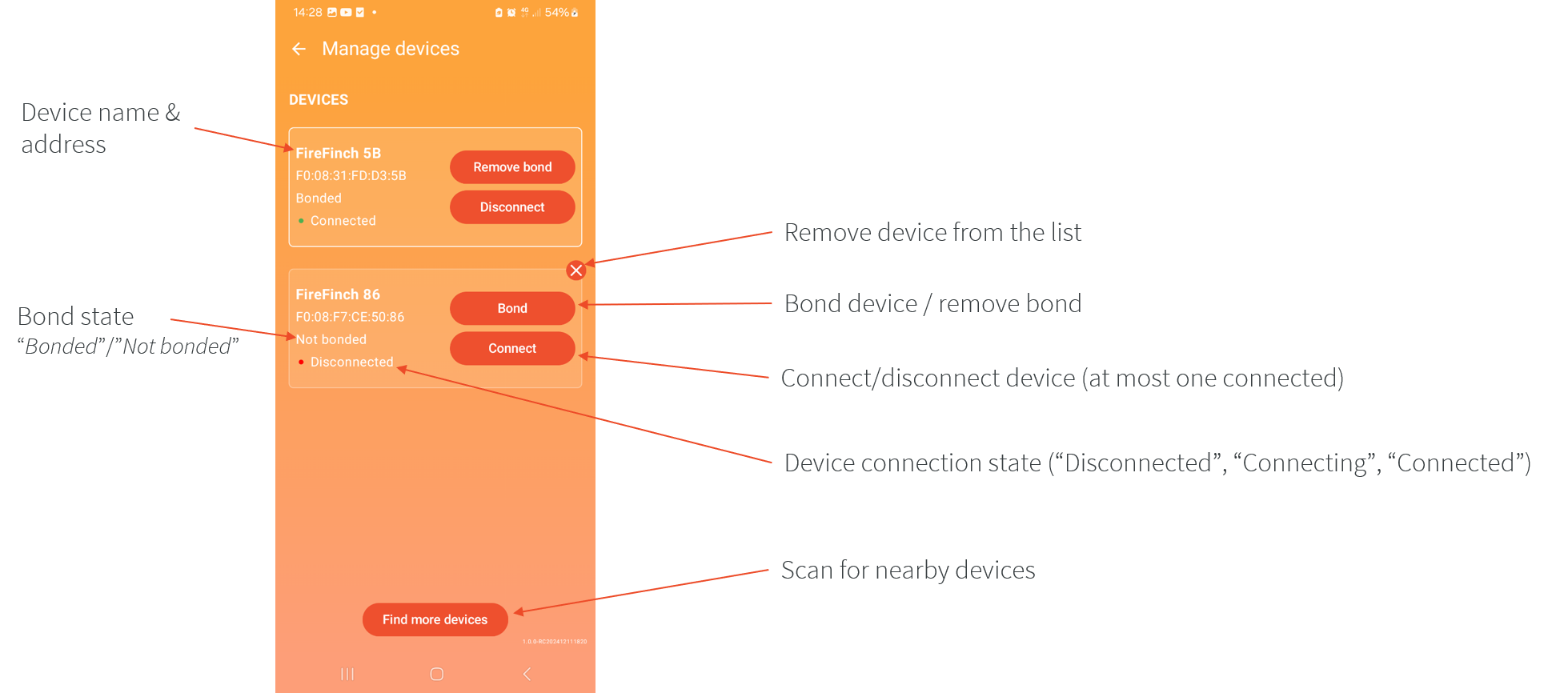
You can have any number of VEE Wear devices managed by the app.
Use Find more devices to scan for nearby devices, and select a device to add it to the list of devices.
You can connect to at most one device at a time, although you can bond to as many devices as you want.
You can remove devices from the list only when they are not connected and not bonded.
Devices are identified by their name and Bluetooth address.
App installation via BLE
An application can be installed on a VEE Wear device via Bluetooth Low Energy.
Important
This requires a VEE Wear application file (.fo) compatible with the VEE Wear Kernel that is running on the device.
Upload the application file on the phone file system.
Open the Companion App.
Connect to a bonded device.
Go to
Install a Feature.Select the application file (.fo) on the phone file system.
Select
Start.
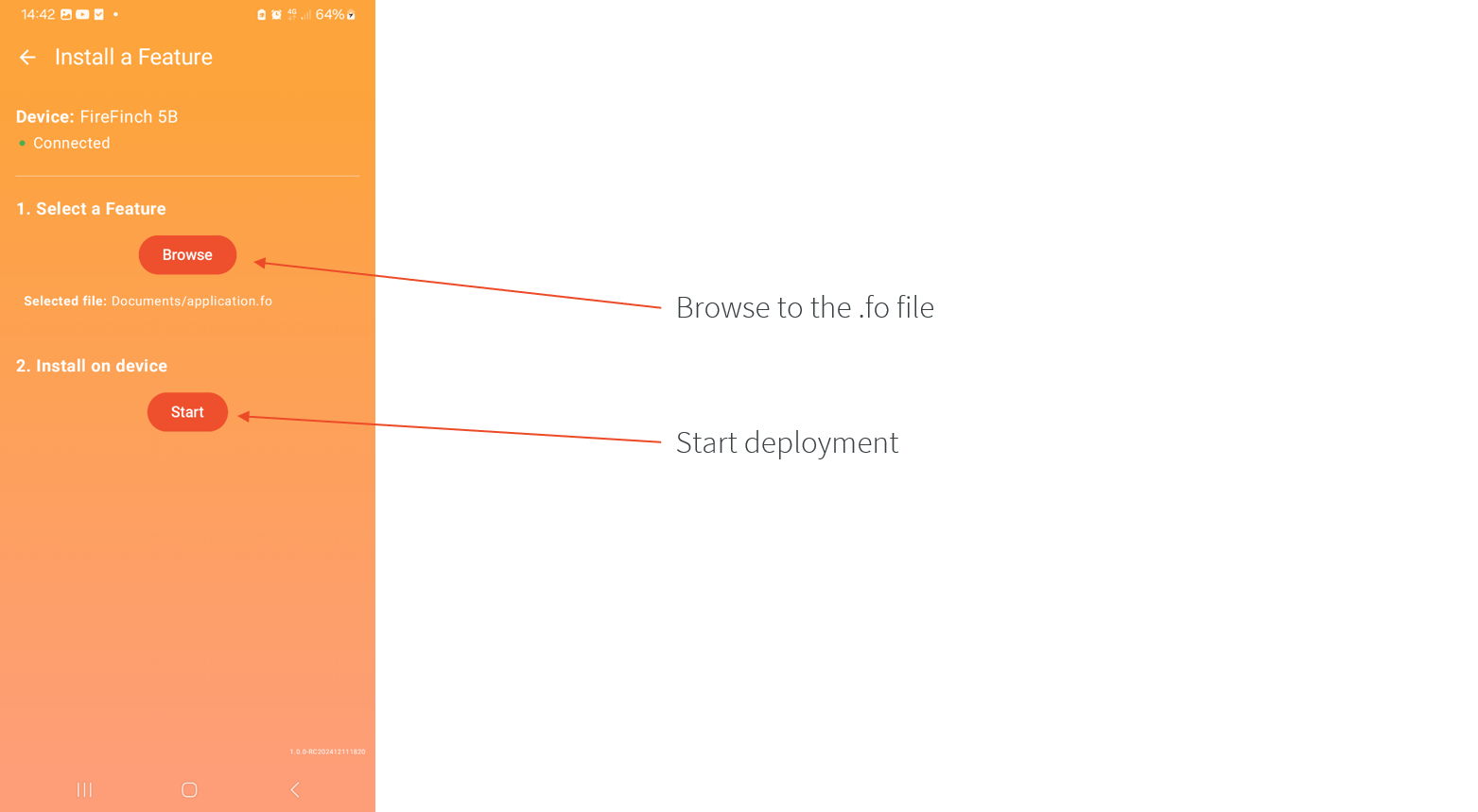
The installation takes around 6 seconds for a 350KB file.
When the message Operation completed successfully shows up, the application has been correctly installed.
Troubleshooting
The message Operation failed shows up. Main causes:
The application is not compatible with the Kernel running on the device.
The application is already installed.
Make sure to use an application that has been built for the Kernel that is running on the device. You can reboot the device to remove any application installed via Bluetooth.
Time synchronization over BLE
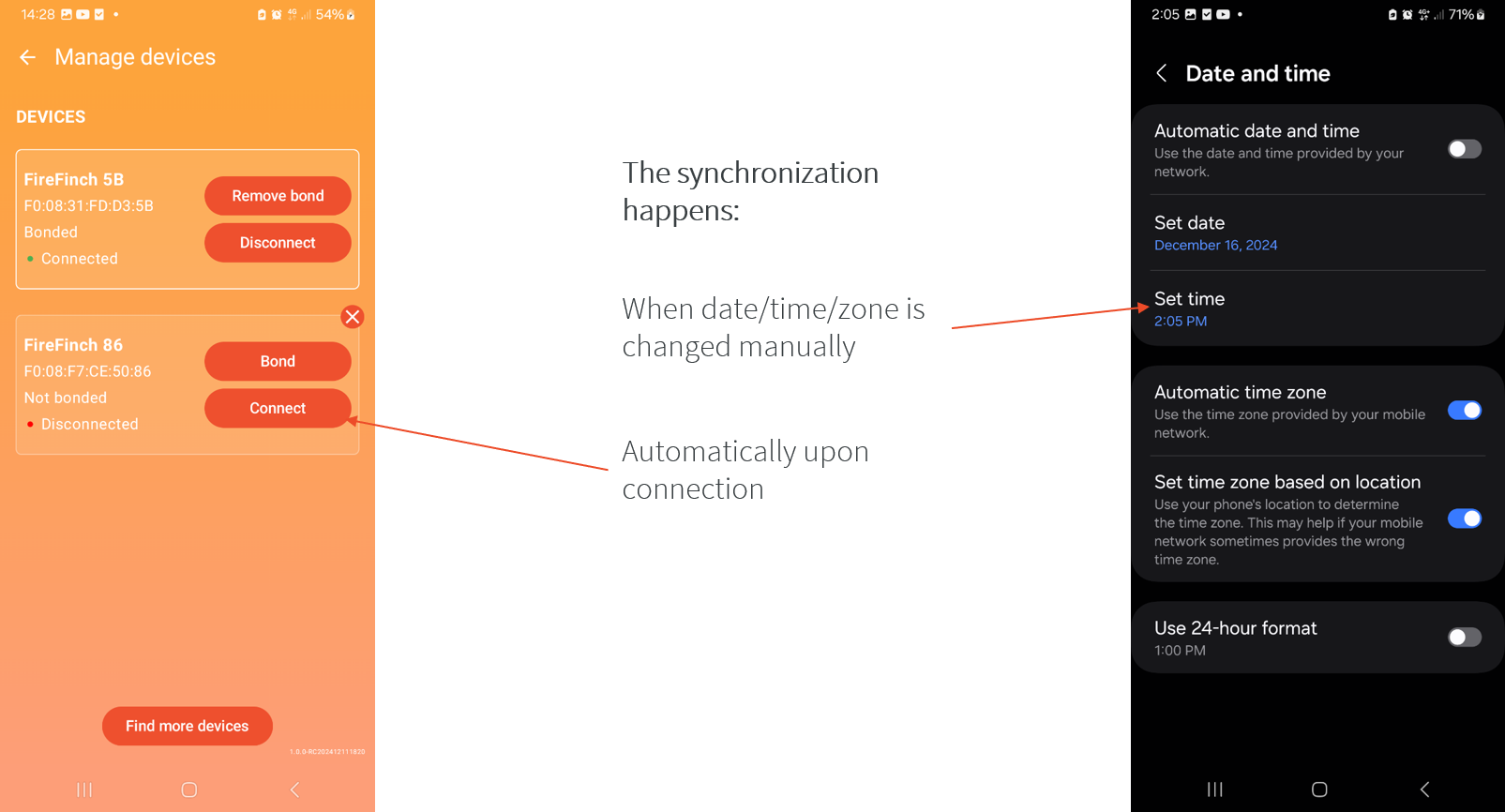
The current time and time zone of the device can be synced with the phone. The Companion App sends a message via Bluetooth with the current time and time zone. The time is synced automatically when connecting to the device in the Companion App, or when changing manually the time or time zone in the Android system menus.
Open the Companion App.
Connect to the device.
When the connection status changes to
connected, the device is synchronized and now reflects the correct time and time zone.
Facer User Guide
Introduction
Facer is the number 1 watchface platform for smartwatches.
It allows users to customize their watch with a wide range of faces from the community and brands.
Users can also create their own faces using the Facer creator, an online design tool.
Key features:
Layer-based design (e.g., image, text, shape)
Tags and expressions (i.e., dynamic values and some math operations)
Interactions (e.g., stopwatch, app launcher)
Complications
Theme and color customization
It is supported on WearOS, watchOS, Tizen and now VEE Wear, and is available through the Google Play Store.
Note
iOS version does not yet support VEE Wear devices.
Synchronization overview
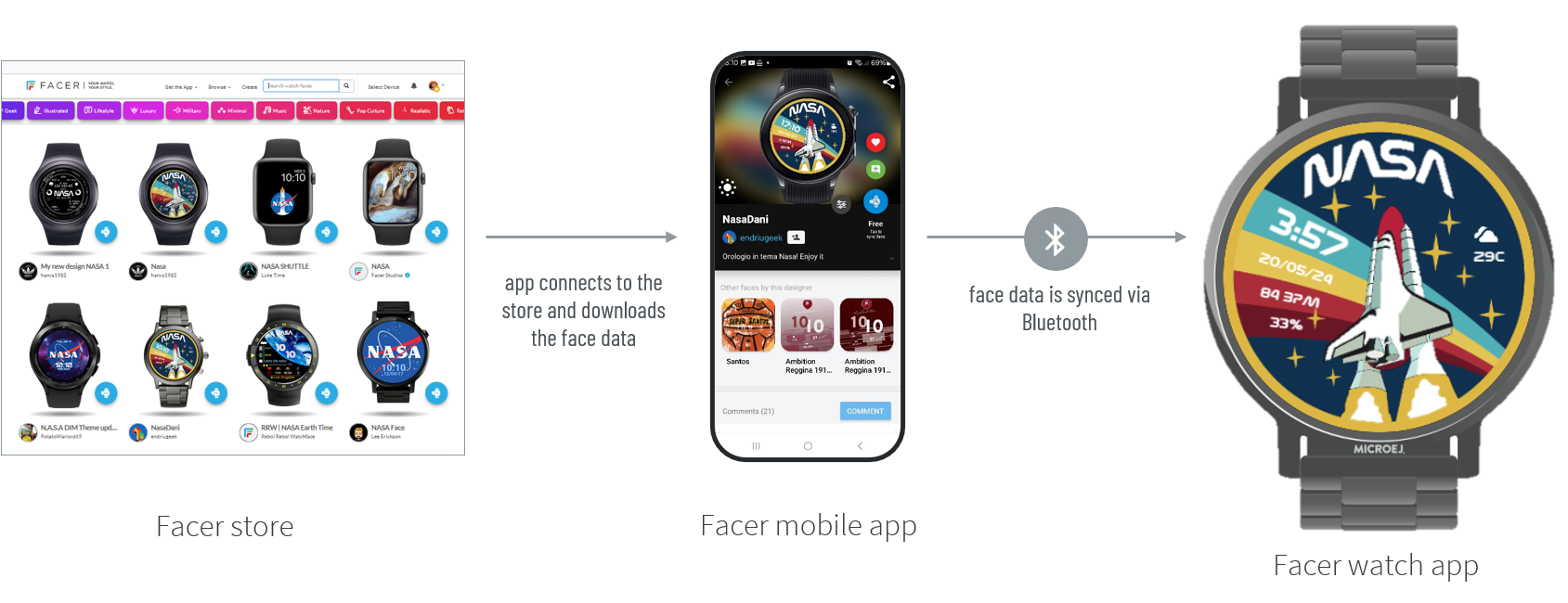
A face is represented as an archive containing:
the metadata (layout description with tags, expressions, etc.)
the resources (e.g., images, fonts)
Faces are optimized for the MicroEJ layout engine to reduce memory footprint and runtime execution time.
Initial Setup
Install the Facer Android application from the Google Play Store.
In the Android Settings application, allow permission
Nearby devicesfor the Facer app.Open Facer.
You can skip the initial setup assistant.
Open the left menu (burger icon).
Sign-in.
In the device selection, select the device
MicroEJ FireFinch(last item in the list of devices).
Important
Only one device should be bonded to the phone when using Facer. In the Companion app, make sure to have only one bonded device in the list.
How to show the Facer watchface
Long press on any watchface to show the watchface picker. Select the Facer watchface in the picker and tap to enter.
The latest synchronized face is shown. If the progress bar is spinning, then there is no face in memory.
Note
Watchface data is stored in RAM, it does not persist after a reboot.
How to synchronize a watchface
Note
This action requires an internet connection on the smartphone (WiFi, 3G/4G/5G).
Open the Facer Android app.
Select a face in the catalog.
Click on the Sync button (blue button).
Track the sync progress in the Facer watchface.
Troubleshooting
Close (completely) the Facer app.
Make sure that the VEE Wear device is visible in the VEE Wear Companion app (test disconnect/connect). If not, reboot the VEE Wear device.
Make sure that the Facer app has the permission
Nearby devicesin the smartphone settings.- Make sure to have only one VEE Wear device bonded to the phone:
Check that only one is bonded in the VEE Wear Companion app (remove the bond for others in the list).
Check also that no other VEE Wear device is bonded in the Android Bluetooth menu (like
Paired devicesorSaved devices).As a last resort, check what devices are bonded with the
nRF Connectapp (available on the Google Play Store) and remove all bonded devices.
Open the Facer app.
Check that the selected device is
MicroEJ FireFinch.Test first with a simple/lightweight face like
Simple ThemeableorStart Here.
Note
Some faces just don’t work or have rendering issues, please avoid them (and report them). If the Sync button is greyed out (not blue), it means that the face is not available for VEE Wear devices (too big to fit).
Note
Some recommendations:
Have a short-list of favorites that you know are great and 100% working.
Do not stress the Facer app (e.g., interrupt a sync) to avoid inconsistent states.
Use only the VEE Wear Companion App to manage the VEE Wear devices.
About the VEE Wear Facer Engine
Features:
Face sync over Bluetooth Low Energy.
Deserialization of the face metadata.
Processing of the face tags and expressions.
Rendering of the face layout and elements (MicroUI 3, MWT 3).
Footprint:
Java Code: ~100KB ROM / ~10KB RAM
Face: size ranges from hundreds of kilobytes to some megabytes.
Highly depends on the number and type of images used by the face.
Status:
Available for evaluation.
In the process of certification with Facer.
Working on implementing the missing features, fixing bugs and optimizations.